
So so many friends have asked me how I use Claude Code from my phone. I am always a bit surprised, because a lot of this type of work I have been doing for nearly 25 years (or more!) and I always forget that it is partially a lost art. This is how it used to be. We didn’t have fancy IDEs, and fancy magic to deploy stuff. We had to ssh (hah. Telnet!) into a machine and work with it through the terminal. It ruled. It was a total nightmare. It was also a lot of fun.
One of my favorite parts of the early 2000s was hanging out in IRC channels and just participating in the most ridiculous community of tech workers. A very very fun time. #corporate on efnet!
There is a lot of nostalgia for that time period - but for the most part the tooling sucked. The new IDEs, and magic deploy systems have made it so that you do not have to deal with a terminal to get shit done. And then… Claude Code sashays into the room and fucks up the vibe.
Or creates a new vibe? Who knows. Anyway. We are all using terminals now and it is hilarious and fun. So let’s vibe.

The conversation I have with people about Claude Code start normally, and almost without exception end with “I wish I could do this from my phone.”
Well.. I am here to tell you that it is easy! And accessible!
The other (easier) way
First things first - there are a couple really neat startups that are solving this in a very different way that I work. I think they are awesome. My favorite example of this is superconductor (great name!). They allow you to run and instantiate a bunch of agents (Claude Codex, Amp, Codex, etc) and interact with them remotely. They are also a really great team!
Another example is happy coder. An open source magical app that connects to your Claude Code. It is theoretically pretty good, and I know some people who love it. I couldn’t get it to work reliably.
My way
One of my core values is: I want to just ssh into shit. That is kind of one of my general hobbies. Can I ssh into this thing? If yes, then I am happy. If no, then how can I make it so I can ssh into it.
When it came to figuring out how to use Claude Code on my phone, the obvious answer was: ssh into my computer from my phone, and run claude. Turns out this is pretty straight forward.
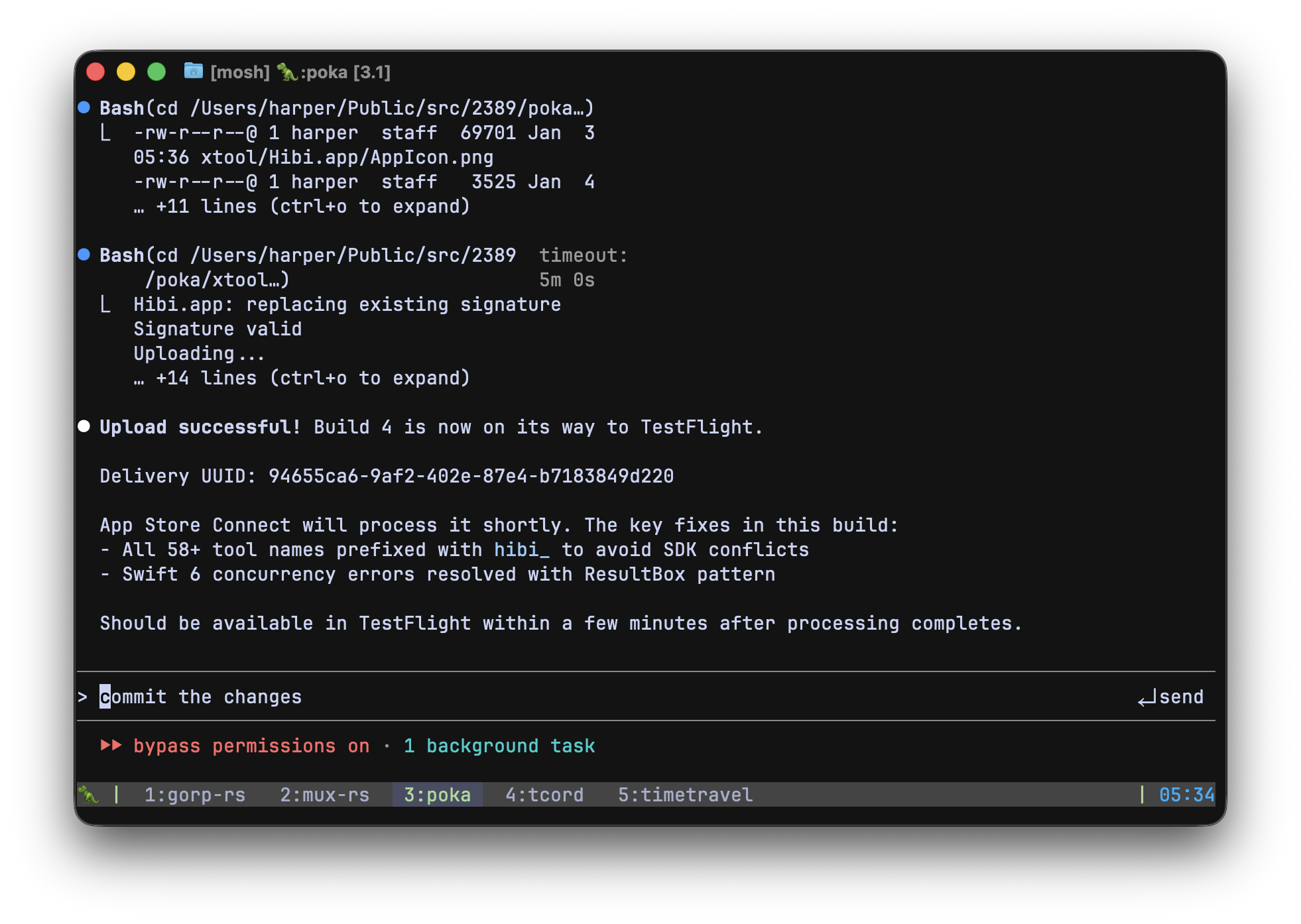
My workstation:
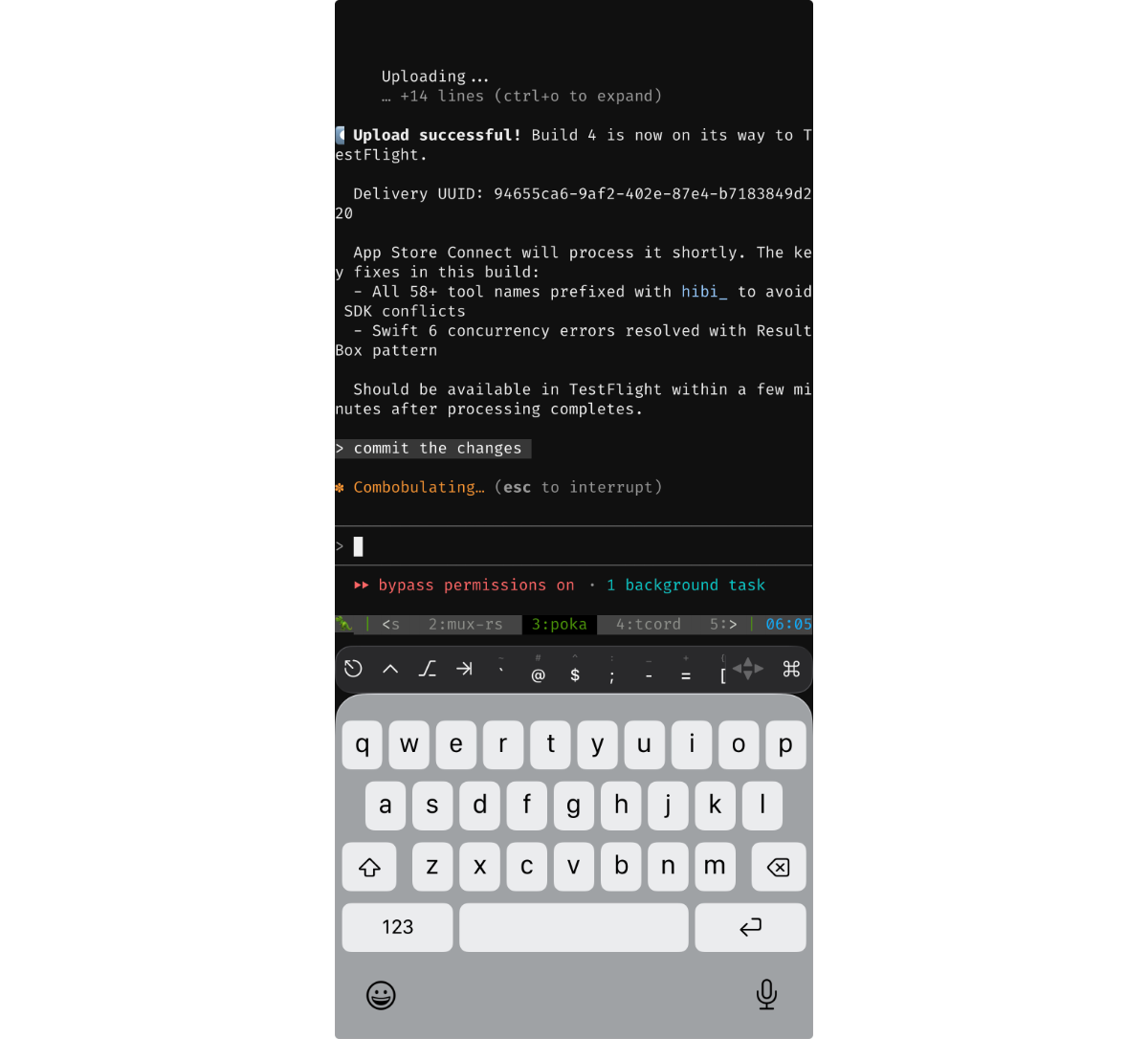
My phone:
Let’s break it down.
I use an iPhone, so I will be talking about iPhone apps. There are good android apps to do this too!
There are maybe 4 things you need to solve for:
- network
- terminal client
- workstation
- tools
As a form of tldr, here are my personal answers:
- network: Tailscale
- client: blink
- workstation: Mac with constant power and fast internet
- tools: TMUX, some magic scripts, and Claude Code
Let’s break it down:
Network
You will need to access your workstation from anywhere. I use a Mac and linux boxes for this.
Linux is easy: Just make sure openssh-server is installed. Test that you can ssh into it - and bam. Typically if you are using a box from a Claude provider, this is built into the program.
Macs are a bit harder. You need to enable ssh, and then for extra credit you need to enable screen sharing. Once this is done you should theoretically be able to remotely connect to your computer.
It is very important you try to connect to it from another computer that is on the same network. Figure out your local IP (192.168.xxx.yyy), and then ssh to your local IP from another machine (or from the same machine). As long as you can connect to it - then the next step will be super easy. If you can’t connect to it, ask chatgpt wtf is going on.
Once you can reliably SSH into your machine, then it is time to get Tailscale working. There are a few alternatives (zero tier, etc) and I am sure they are good. Tailscale is friends, and they are awesome. Having used them since before they launched, I can promise that it is a life changer.
Install the Tailscale client on all your machines. Tailscale will magically create a network that only you have access to (or anyone else you add to your network). You can then access any of your machines from any of your machines.
I.e. your phone can instantly connect to your workstation while you workstation is in Chicago, and your phone is in Tokyo. You don’t have to poke a hole in a firewall, do magical networking, or learn how to do magical networking. It just works. It is a beautiful product. There are is a deep bench of Tailscale features that you should check out eventually - but for today, just use it for networking.
Since you were able to ssh into your machine before (I hope!) - now you can test it with your fancy new Tailscale ip address or magic name. And you can do that from any device that is on your Tailscale network. Like.. your phone!
This means network is solved!
The terminal client
This is where some personal preference comes in. You now need to pick a terminal client that you like to use, and feels good to use. Lots of my friends like prompt, and termius. Both are great choices.
I personally really like blink. It is a bit nerdier, and when you open it, it just drops you into a shell. Immediately. No interface, no nonsense. Just a shell. It is a wild app. You can use their blink build product to host a lil dev server for yourself!
I wanted to use their build product - but the default and unchangeable user was
rootand I cannot being myself to seriously use a product that drops you into a server as the root user. lol
Anyway, blink is for me!
And since you set up Tailscale, and ssh you can just type ssh <dev-server-ip> and it will magically connect.
you can use the
configcommand in blink to set up keys, and hosts, etc. highly worthwhile.
Now you are inside of your workstation! Now you can really rip some tokens!

Tools!
You could just navigate to the directory that your Claude project live, and run Claude. But then when you phone went to sleep or whatever - your ssh client may disconnect. And you would have to redo the connection, run Claude –continue, and live this life of lots of typing.
We don’t use AI tools to type more!
There are three tools that are super helpful:
- Keys/identity
- Mosh
- TMUX
Keys
If you are using SSH a lot you need to set up some SSH keys, and then push them around to all your servers. I am not going to tell you how to do that, since you should already have keys somewhere to integrate with source code repositories.
If you want to generate new, or have questions - the terminal clients may help you. My guess is that you already have some.
Couple tips:
- use a password to unlock your key!
- use an ssh agent to make that process not horrible
- on a Mac you can have your key be unlocked by your keychain (which is also where your Claude Code api key is!)
Mosh
Mosh is from a forgotten time (2012!) when the internet was slow, and connections were spotty. What mosh does is allow your “fragile” ssh connection to roam around with you. You use it just like ssh: mosh <dev-server-ip>. But now when you shut your laptop, or forget about your phone - the connection will pop back up when you surface it again. It allows the connection to survive a lot of the various environmental things that would normally derail a ssh connection.
This RULES.
I was on a train the other day and totally lost internet while we were in a tunnel. Then we emerged and internet came back. My ssh (really mosh) session just paused for a moment, and then BAM! Was back and Claude was telling me it had deleted my entire workstation, and was going to the beach!
There are some gotchas about ssh-agent, keys and mosh that I won’t get into. If things are weird, just google it or as chatgpt.
TMUX
Tbh, I am a screen guy. But it is 2026 and TMUX is a better choice.
It allows you to have a long running terminal process that you can reattach to. This is helpful even without a remote connection. It also acts as a multiplexer - allowing for multiple terminal sessions in a single terminal window.
You can have 7 Claude Codes running simultaneously and just tab through them as needed.
TMUX is what a lot of the “Claude Code orchestration” hacks are built upon.You should check them out. I haven’t yet found one that works how I want it - even know there are some good ones! I just want to use regular old TMUX, and a bunch of weird helpers.
My TMUX config is here: harperreed/dotfiles/.TMUX.conf. Be forewarned, that the key combos are wacky!
TMUX is the key that allows me to run a dozen Claude Code instances, and then walk away from my workstation, pick up my phone and continue hacking.
shell scripts
To make things consistent, and easier I have a few scripts that really tie the room together.
Aliases
First, I have my claude code aliases:
alias cc-start="claude --dangerously-skip-permissions"
alias cc-continue="claude --dangerously-skip-permissions --continue"
These allow me to start or pick up my last work. You are dangerously skipping permissions, right?
unlock.sh
Another helpful script is this one to help me unlock my keychain:
#!/bin/bash

# Try to show keychain info without password prompt
# If it times out or fails, the keychain is locked
if timeout 1 security show-keychain-info &>/dev/null; then
    echo "✓ Keychain is already unlocked"
else
    echo "✗ Keychain is locked - unlocking..."
    security unlock-keychain

    if [ $? -eq 0 ]; then
        echo "✓ Keychain unlocked successfully"
    else
        echo "✗ Failed to unlock keychain"
        exit 1
    fi
fi
like so:
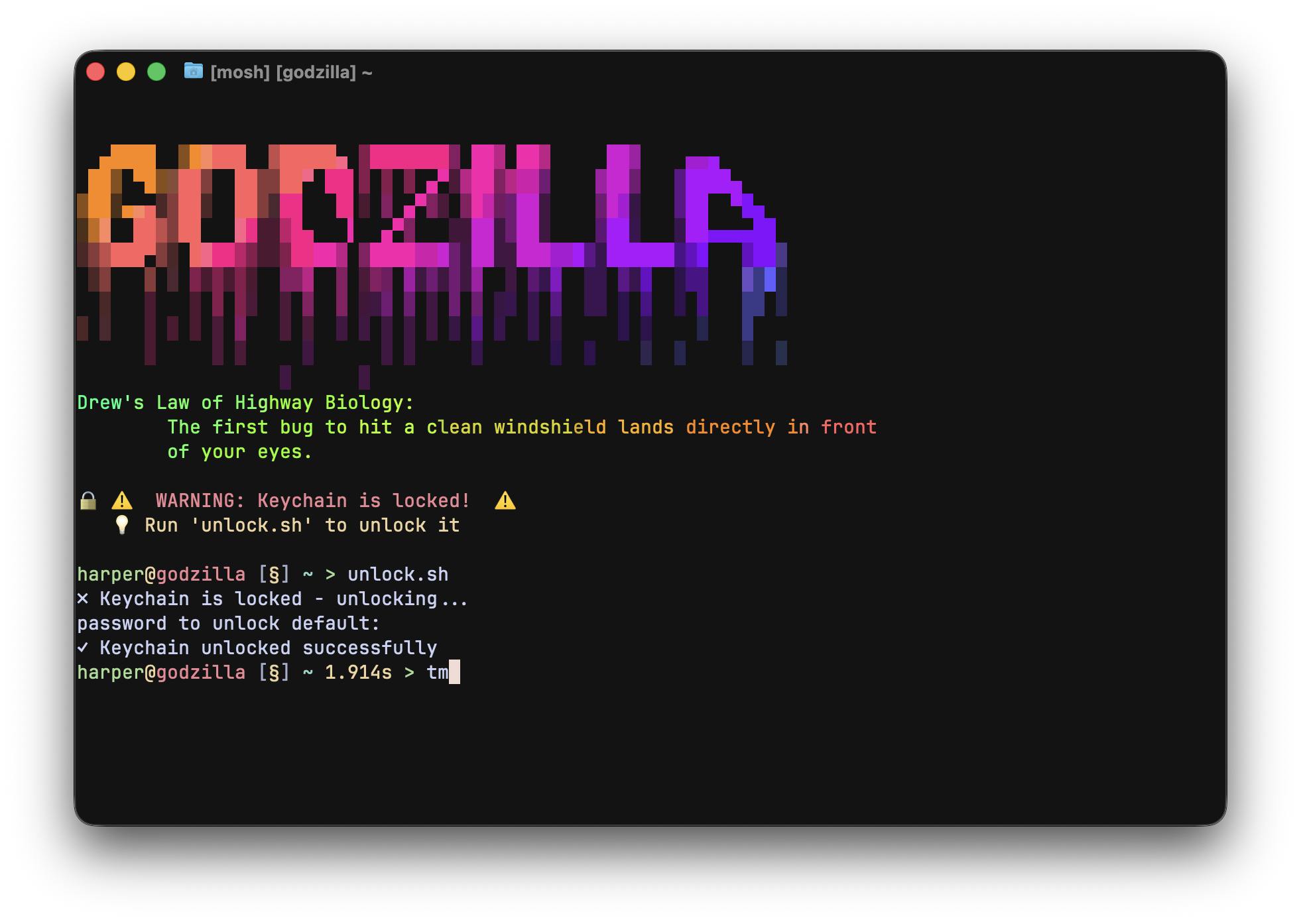
On a Mac, Claude Code stores its api key in your keychain, then it requires you to unlock your keychain to work. This also has the added benefit of unlocking your ssh keys if they are using the keychain for your ssh-agent.
tm
My TMUX starter script is really handy. I just type tm and it magically starts a new named session, or attaches to the named session already.
This script specifically names my sessions based on the workstation I use it from. This allows me to see what computer I am in via the terminal title.
#!/bin/bash

# Machine-specific default emoji
case "$(hostname -s)" in
    "orbit")     DEFAULT_EMOJI="🪐" ;;
    "godzilla")  DEFAULT_EMOJI="🦖" ;;
    "occult")    DEFAULT_EMOJI="🔮" ;;
    *)           DEFAULT_EMOJI="✨" ;;
esac

SESSION_NAME="${1:-$DEFAULT_EMOJI}"

# Check if session exists
if tmux has-session -t "$SESSION_NAME" 2>/dev/null; then
    # Session exists, attach to it
    tmux attach-session -t "$SESSION_NAME"
else
    # Session doesn't exist, create it
    tmux new-session -s "$SESSION_NAME"
fi
The final workflow
My workflow is:
- open blink
- ssh into my workstation
- type
unlock.sh - type
tm - burn tokens
Simple, right
Now you can tell Claude to do weird shit from your phone 24 hours a day. It rules. Don’t do it while driving.